Manage DNS
Add, edit, and remove DNS records from the isroot dashboard.
Open your DNS records
- Sign in to isroot.
- Open DNS Records in the dashboard.
- Select the subdomain you want to configure.
If setup is incomplete and the dashboard offers Retry setup / migration, use that action and reload the records.
DNS editing in isroot is available when the subdomain uses isroot's default nameservers. With custom nameservers, manage records at your chosen DNS provider. See Nameservers.
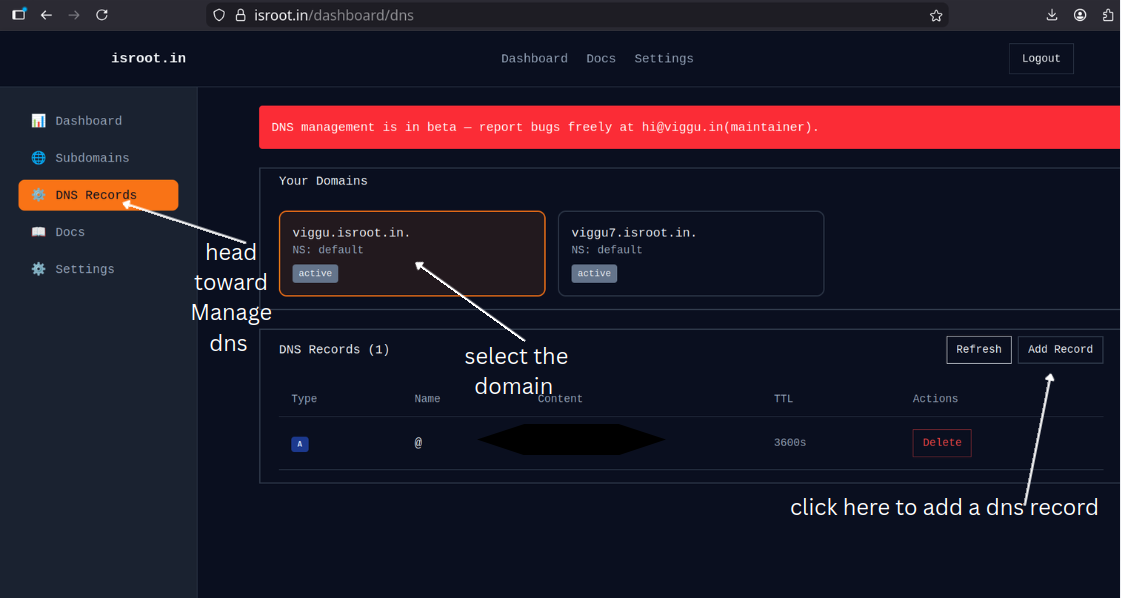
Add a record
- Choose Add Record.
- Select A, AAAA, CNAME, MX, or TXT.
- Enter Name/Host, Value, and TTL (seconds). For MX, also enter MX Priority.
- Save and confirm that the new value appears in the records list.
For myproject.isroot.in, use @ as the name for that exact address, or www for www.myproject.isroot.in. Names are relative to the selected subdomain: entering the entire address would append the zone again.
For IP records, enter an IP address. For CNAME and MX records, enter a hostname without https://, a port, or a path. See the record reference for examples.
Edit a record
Choose Edit beside the value you want to change, update the fields, and save. Records with the same name and type share a TTL, so changing that TTL affects the group.
Remove a record
Choose Delete beside the specific value and complete the confirmation. Check the name, type, and value first, especially when several values share a name.
NS and SOA records may appear in the list, but are not editable through the ordinary record form. Change delegation through Edit Nameservers.
Verify a change
dig myproject.isroot.in A +short
dig www.myproject.isroot.in CNAME +short
dig myproject.isroot.in TXT +short
Cached answers may persist until their previous TTL expires. If the result is unexpected, use Troubleshooting.